
Complete and invoice
When a job goes green on the dispatch board, SkipDrop drafts an invoice automatically. You review and send.
Auto-drafted invoice — what’s in it
Section titled “Auto-drafted invoice — what’s in it”- Skip type + days on site
- Dump cost (if the driver entered a weighbridge ticket)
- Any extras you added (overweight, contamination, extra trip)
- VAT — toggled on/off per yard in Store settings
Review and send
Section titled “Review and send”-
Open Invoices from the top nav. Newly drafted invoices sit at the top.
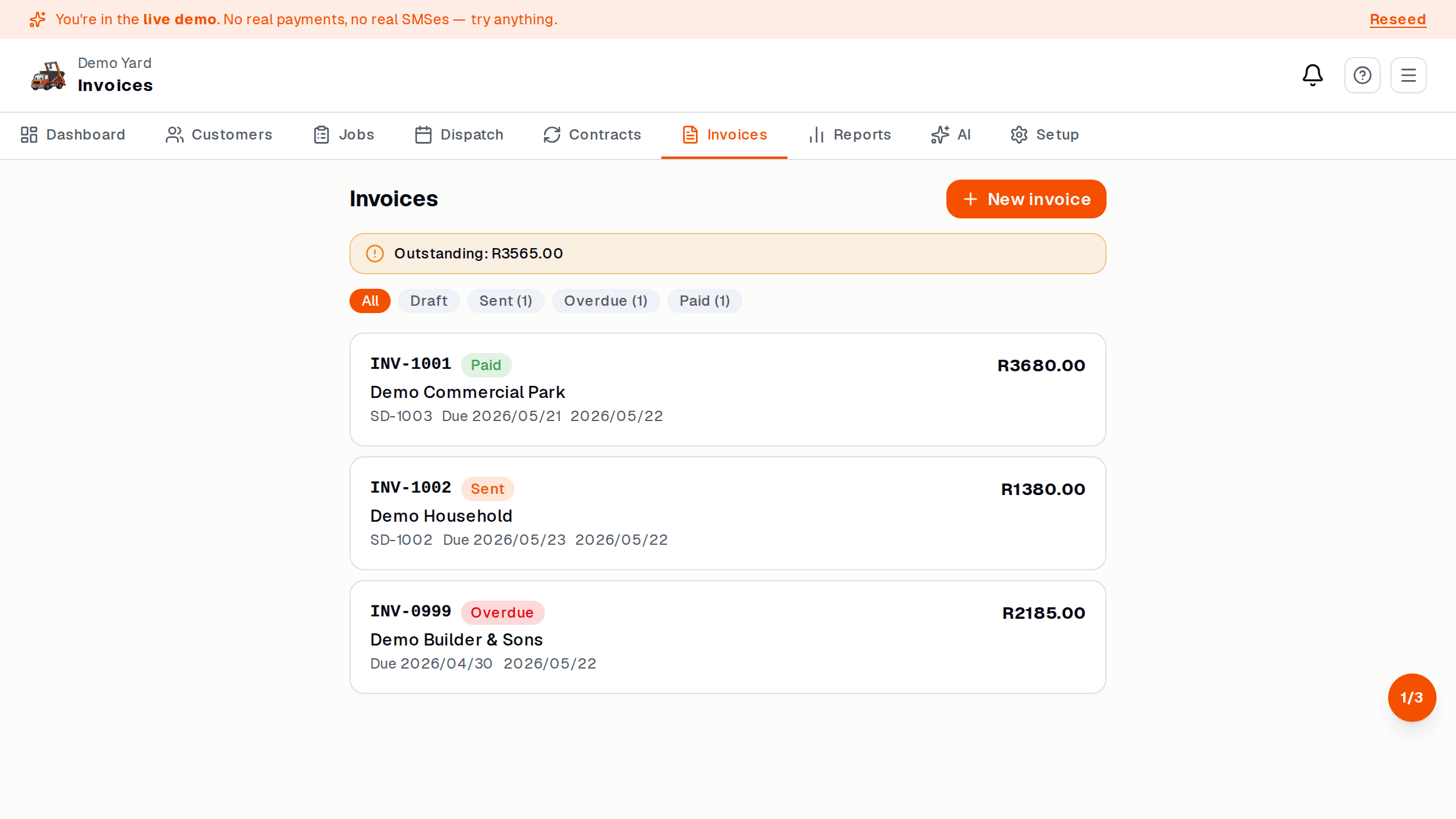
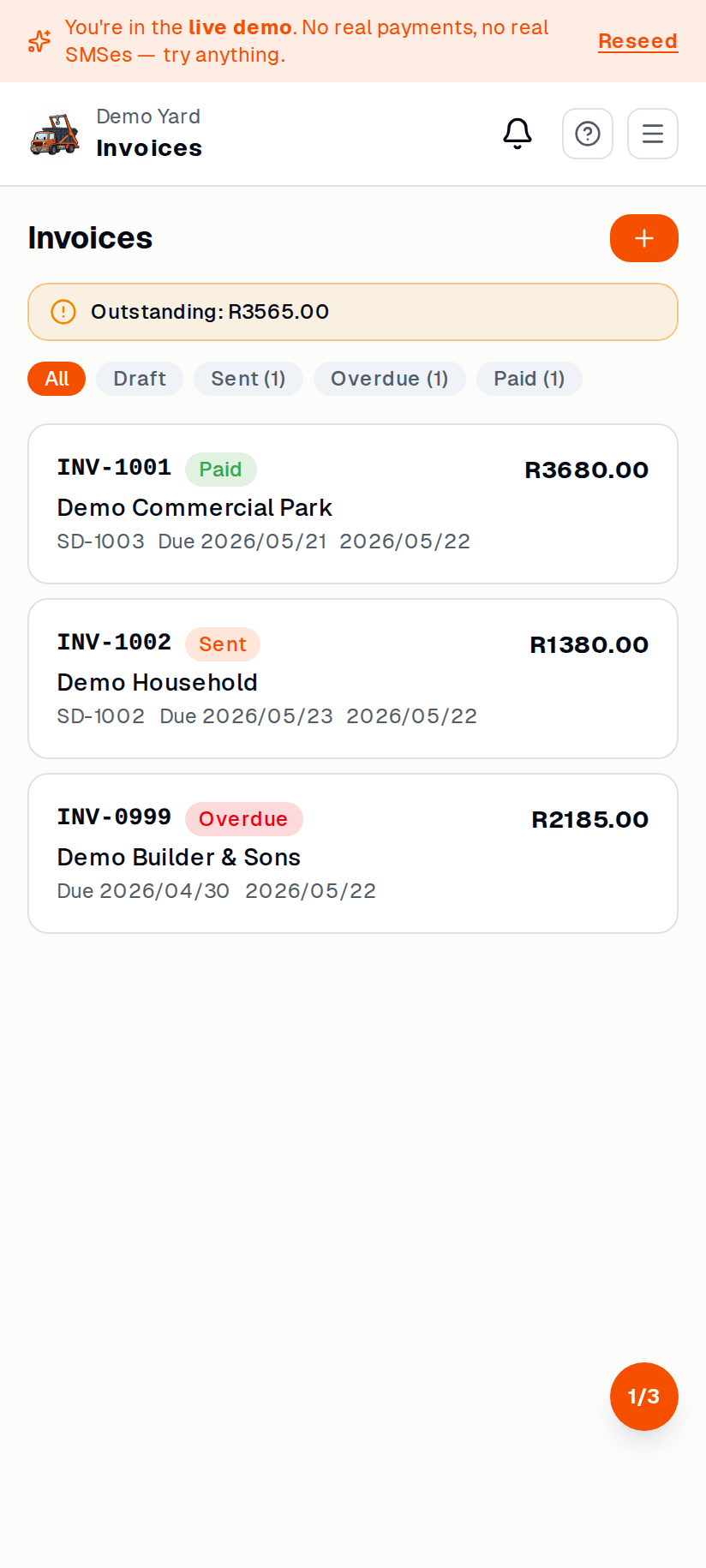
-
Tap a draft to open it. Tweak line items if needed.
-
Tap Send invoice.
- By email — if the customer signed up with email
- By SMS — sends a short message + link to view + pay
- Print — PDF you can hand over
The customer pays
Section titled “The customer pays”The invoice link opens a public page with three pay options:
- Card / EFT (PayFast) — instant, lands in your bank in 1–2 days (Pro plan only)
- Manual EFT — your banking details, customer pays directly
- Cash — for COD jobs; mark paid yourself
When PayFast confirms payment, SkipDrop flips the invoice to paid automatically. For manual EFT and cash, you tap Mark as paid when you’ve received it.
What if there’s a dispute?
Section titled “What if there’s a dispute?”- Tap Issue credit note on the invoice — adjust amount, add a reason.
- A credit note is sent and the invoice balance updates.
- Disputes are logged on the customer record so anyone in your team can see the history.
See also
Section titled “See also”- Online payments — switch on card / EFT
- Reports — see what’s paid, outstanding, and overdue