
Dispatch
The Dispatch board is the heart of SkipDrop. It is where you go every morning to plan the day, and where you check progress through the day.
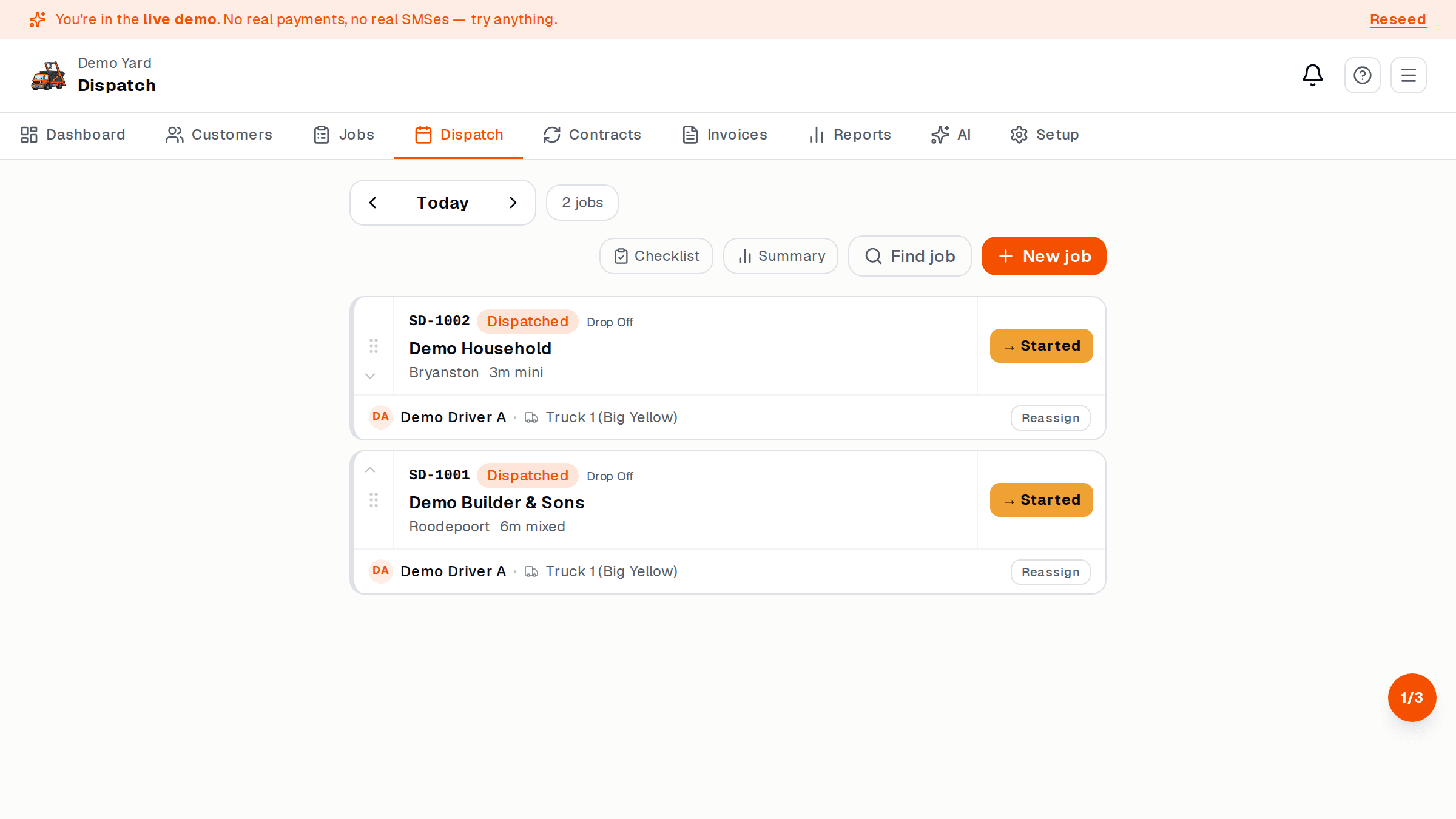
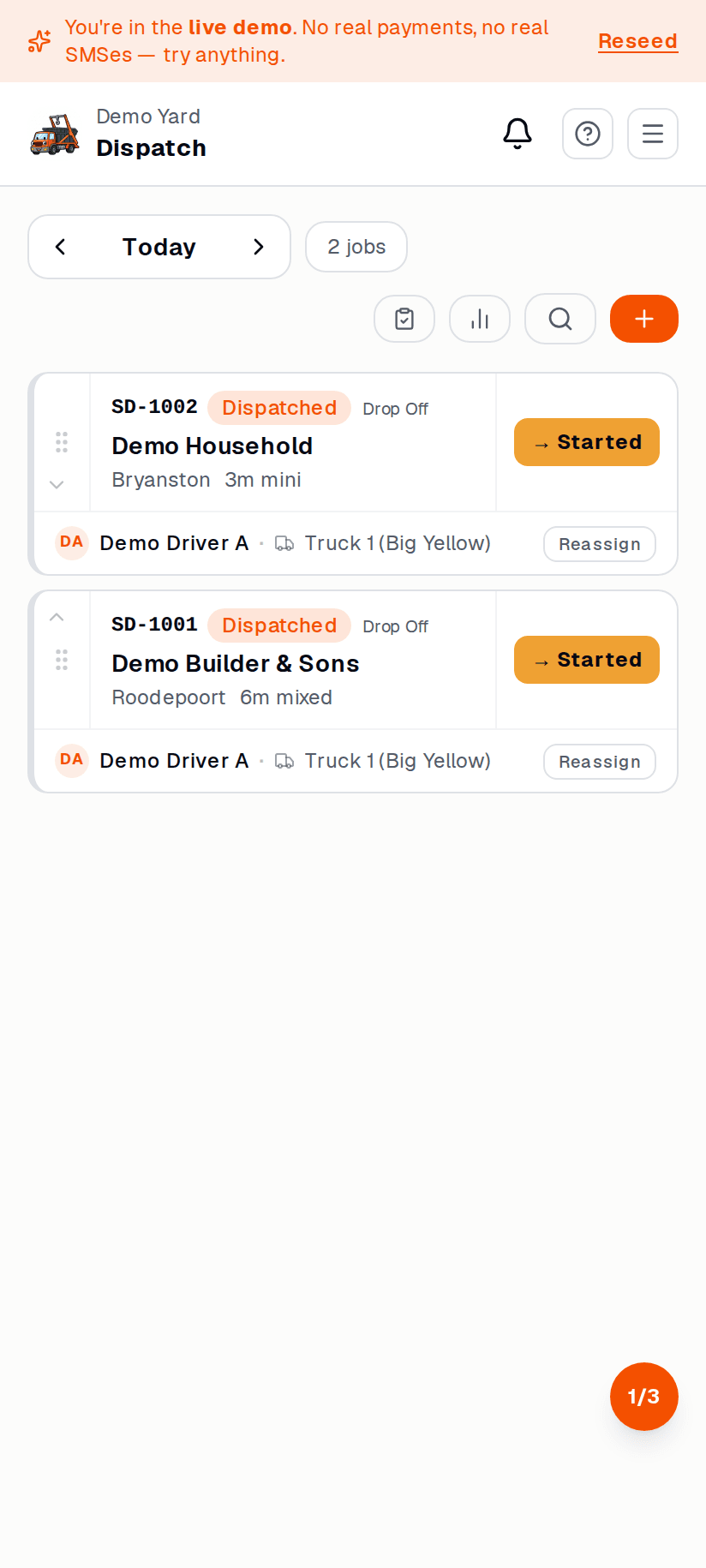
What you see
Section titled “What you see”- A lane per driver down the left.
- A timeline across the top (today by default — flip to tomorrow with the date picker).
- Cards for each job — deliver, collect, or both, with the skip ID and address.
- A backlog column on the right with unassigned jobs.
Plan the morning — 5 minutes
Section titled “Plan the morning — 5 minutes”-
Open dispatch. Top nav → Dispatch. The board defaults to today.
-
Look at the backlog. Anything unassigned? Drag it onto a driver’s lane.
-
Reorder within a lane. Drag cards up/down — earlier-in-day jobs go to the top. The driver sees their list in the same order.
-
Done. Drivers see their assigned jobs on their phones — see Driver app.
Through the day
Section titled “Through the day”The board updates live. As drivers update jobs from the field, you see:
- ✅ Green check — job complete
- 🚛 Blue truck — driver is en route
- ⚠️ Amber — running late, missing photo, customer not home
- 🚫 Red — failed (customer refused, wrong address, etc.)
Tap any card to see the full job, message the driver, or call the customer.
What if a driver phones in sick?
Section titled “What if a driver phones in sick?”- Open Dispatch.
- Drag every card from their lane onto another driver — or back to the backlog.
- The replacement driver gets a phone notification within seconds.
See also
Section titled “See also”- Driver app — what your driver sees
- AI day planner